Make a talk track in XtraSpeak
Type what should be said, pick a voice, press Speak — and get a clean MP3 of a spoken voice. No microphone, no recording booth, no audio file to find. XtraSpeak is for speech, not singing or music.
Create a free account to try it →1Write the script
Type or paste the words into What should be said (up to 3,000 characters — roughly 3–4 minutes of speech).
Write for the ear, not the page
- Short sentences. One idea per sentence is easier to say and easier to follow.
- Punctuation is your pacing. A comma is a small breath, a full stop is a pause, a new paragraph is a longer one.
- Spell things the way they're said. Numbers, dates, symbols and abbreviations read best written out.
- Say where you're going. "First… Next… Finally…" keeps listeners oriented in training material.
2Pick a voice
Under Voice there are three ways to choose who speaks:
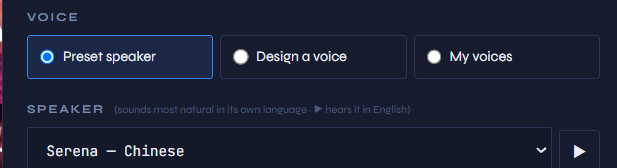
Preset speaker — quickest start
Nine ready-made voices. Press ▶ next to the list to hear a sample. Each voice sounds most natural in its own language (shown beside its name): for English narration, Ryan and Aiden are native English voices; the others speak English with an accent.
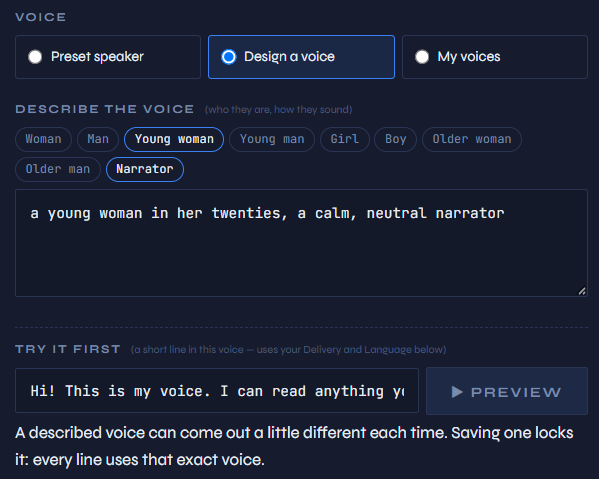
Design a voice — describe who you want
Describe the speaker in plain words, or tap the quick chips (Woman, Older man, Narrator…) and add to them:
Then press ▶ Preview to hear a short line in that voice. Not quite right? Change a word or two and preview again.
My voices — the same narrator every time
When a preview sounds right, give it a name and press ★ Save voice. It appears under My voices as a card; tap a card to use it. A saved voice sounds the same on every clip — essential when a course or series needs one consistent narrator.

3Set the delivery
Delivery is how the words are said. Tap a style or write your own:
| For… | Try |
|---|---|
| Training & how-tos | Calm or Warm — steady and easy to follow |
| Lessons & explainers | Storyteller or Gentle |
| Announcements & promos | Announcer, Cheerful or Excited |
| Serious notices | Serious |
You can be specific too: "slow and clear, emphasis on 'never'". (Saved voices keep the tone they were saved with, so Delivery is hidden for them.)
- Language — set it to the language of your script.
- Model (preset speakers) — Best quality for finished clips; Faster for quick drafts.
- More options → Variation — Steady gives the same read every time; the other settings add natural variety.
4Speak and download
Press ▶ Speak. Your clip appears in the Voice clip panel with a player, and it's saved to your Library as an MP3.
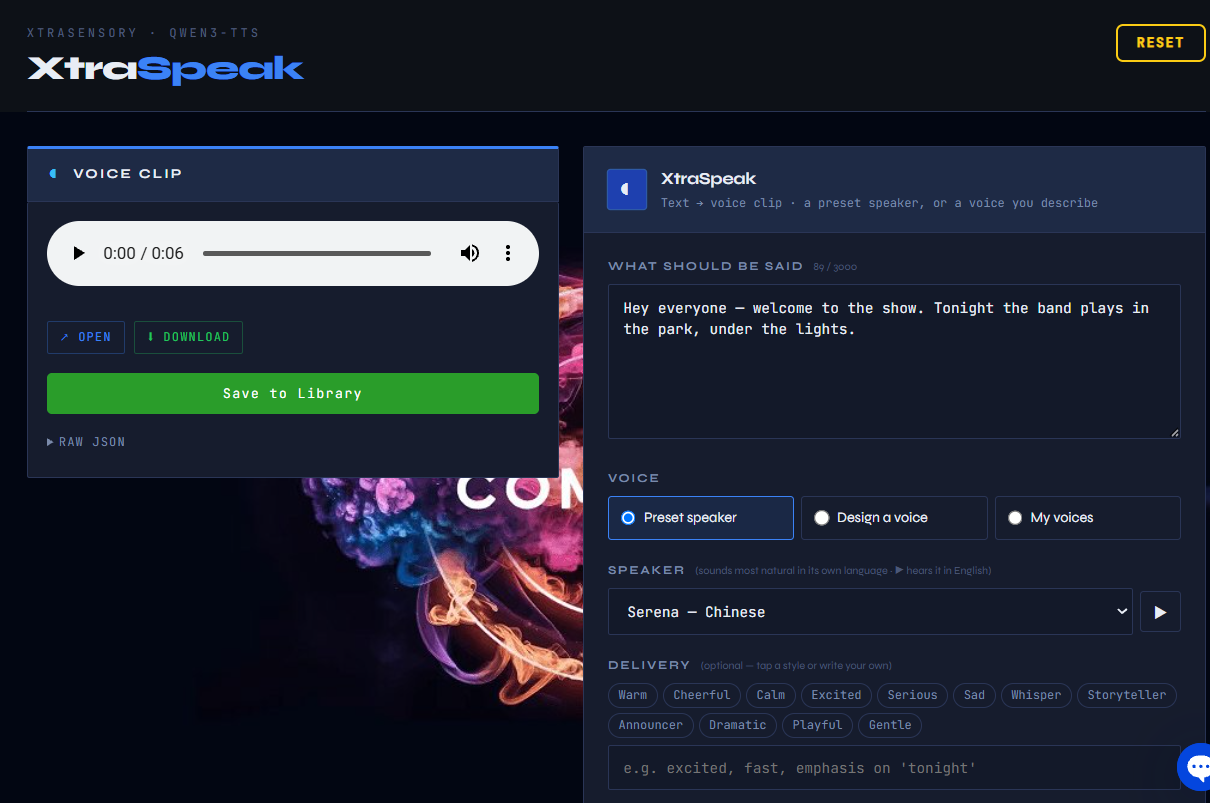
The first clip after a quiet spell takes about a minute while the voice wakes up; after that, about 20 seconds.
If something sounds off
| You hear | Try |
|---|---|
| A word or name is mispronounced | Spell it the way it sounds — "Nguyen" → "Win", "GIF" → "jif". |
| It rushes | Break long sentences up, add commas, or set Delivery to Calm / "slow and clear". |
| The voice changes between clips | Save the voice under My voices and use that, with Variation on Steady. |
| An accent you didn't want | Pick a voice whose own language matches your script, or design one. |
Need a hand?
If you get stuck, click the chat icon in the bottom-right corner of any page — we'll help.