Turn your song into a music video
You bring three things: who's in the band, the song, and the lyrics. XtraSensory's Director plans the shots, paints the stills, animates them to your music and hands you a finished video. The rooms all talk to each other — change something in one and the others keep up — so you can stay at the surface and let it do the heavy lifting.
Create a free account to try it →1Start a project
Room: 3DismZ XtraSensory
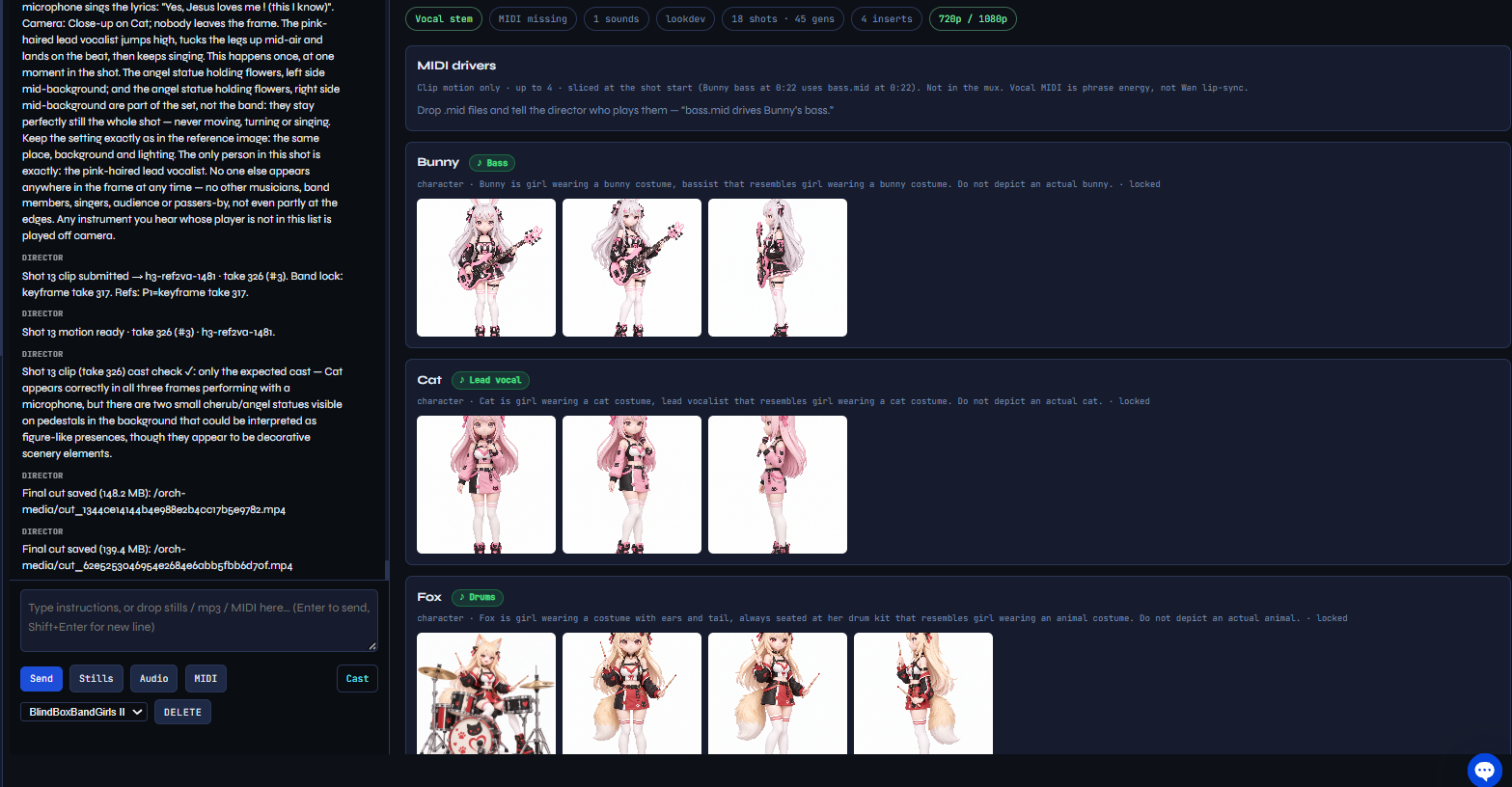
This is home base: a chat with the Director on the left, and a board on the right showing everything you've given it.
- Name your project. The name follows the project everywhere — cast, shots and the final video.
- Drop in your band. Drag in a picture of each member (and any places you want to film in). The pictures are how the Director knows what everyone looks like.
- Drop in your song (mp3 or wav), then paste the full lyrics into the chat. The timing of the song is worked out for you.
- Tell the Director who does what, in plain words:
2Check the cast
Room: Cast, Locations & Sounds — or the Cast button in the main room
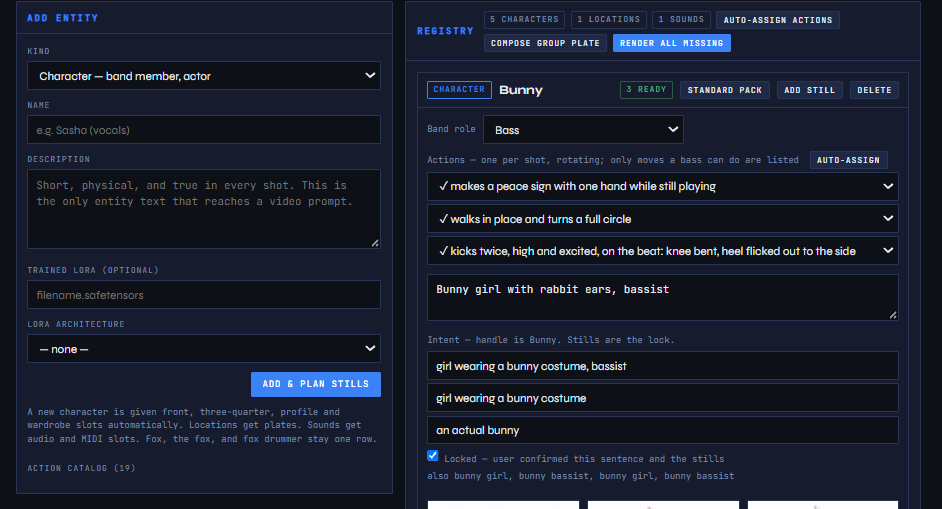
One list of everyone and everything in your video: band members, locations, and sounds.
- Make sure each member has the right name and role (singer, guitar, bass, drums…).
- Each member can have a few signature moves — the Director mixes them into the shots.
- Anything you change here shows up in the Director and the Editing Room automatically.
3Direct the shots
Room: Director Room
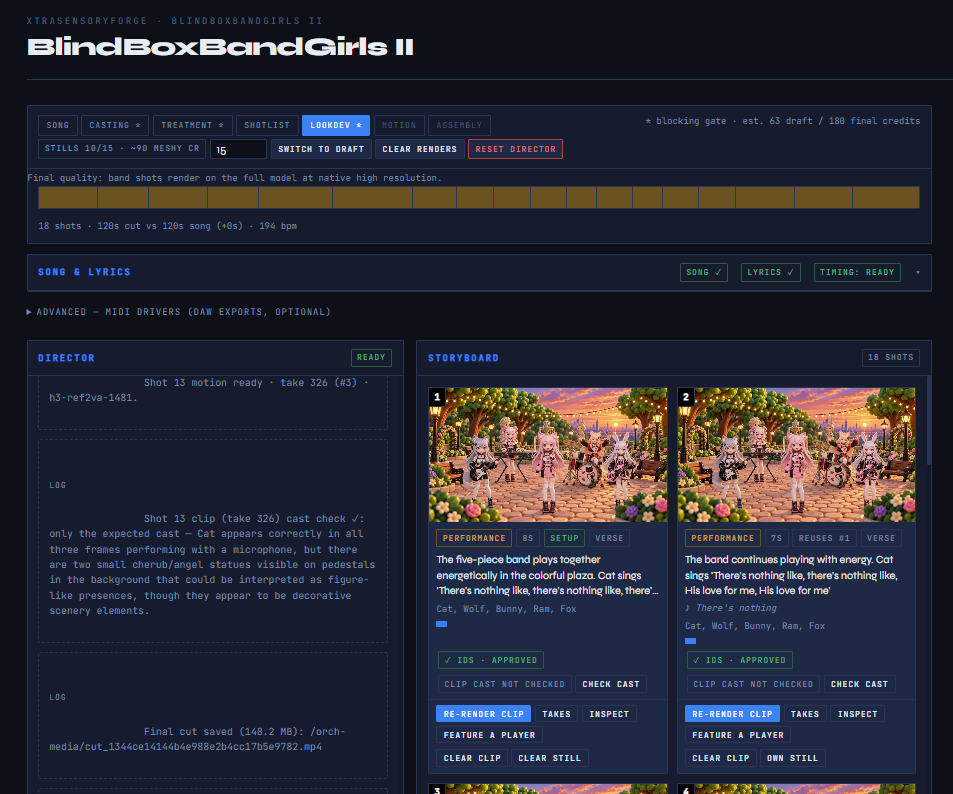
The Director turns your song into a shot list — one card per moment of the song — and walks it through to finished clips. The bar across the top shows where you are:
- Song → Cast → Treatment → Shot list — the plan. The Director drafts it; you read it and give the OK.
- Look dev — a still picture for each shot. Approve the ones you like; ask for changes on the rest.
- Motion — each approved still becomes a short video clip, in time with the music.
It stops and waits for you at a few checkpoints, so nothing expensive happens without your OK. The Song & Lyrics bar shows green ticks once your song, lyrics and timing are all in.
4Edit and render
Room: Editing Room — or the Editing Room button in the Director
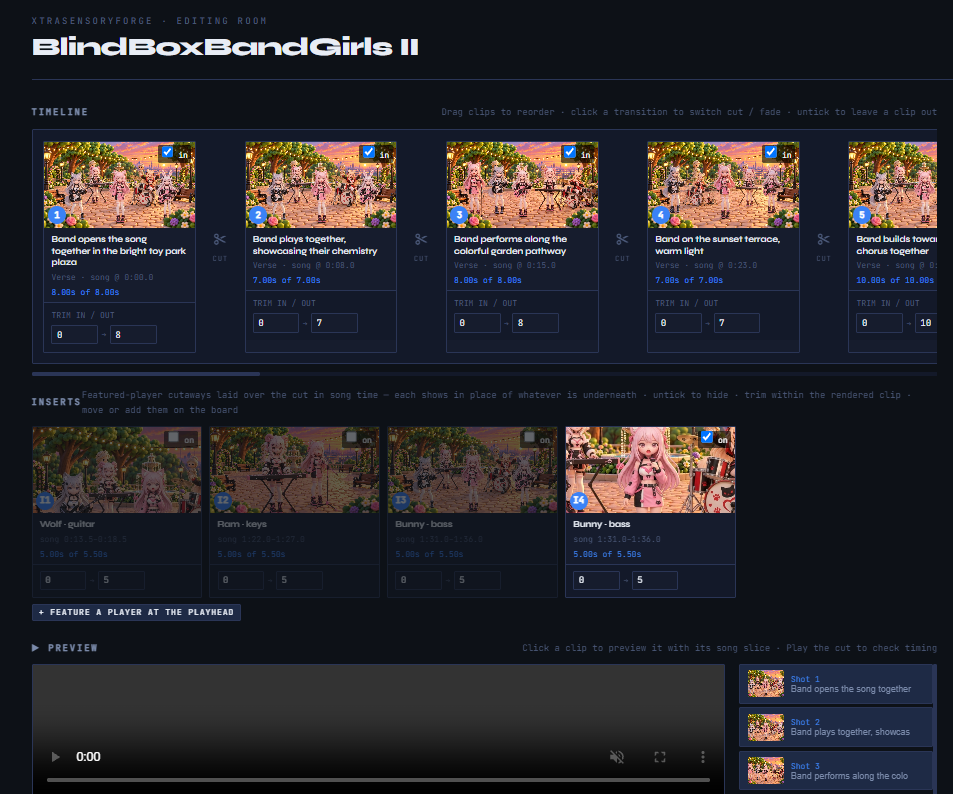
All your clips, already lined up in song order. Watch it through, then polish:
- Trim a clip or change how one shot flows into the next.
- Turn on lyrics on screen, pick a look, and nudge any line that's early or late.
- Render the finished video (720p or 1080p) and download it.
Getting around: XtraSensoryForge
Room: XtraSensoryForge
Your list of projects and productions. Use it to jump back into anything you've started.
On its own: LyricSync
Room: XtraSensory LyricSync
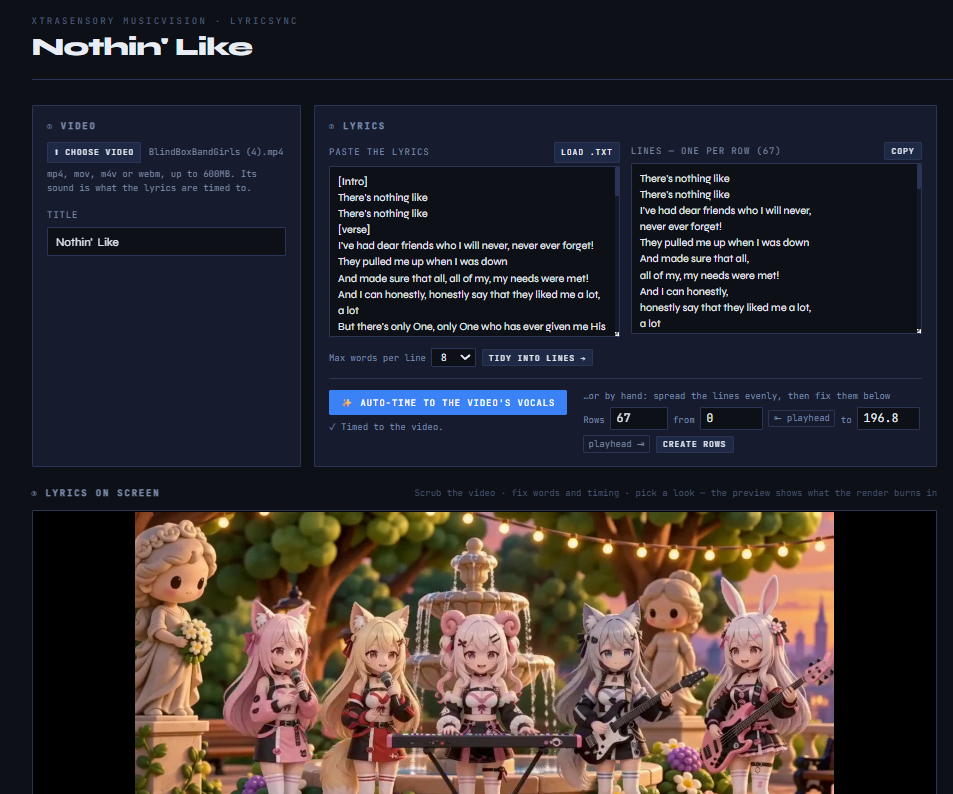
Already have a video and just want the lyrics on screen? Upload the video and paste its words — LyricSync times each line to the singing, lets you adjust any line, pick a text style, and burns the lyrics into a new copy of your video. No band or shots needed.
Side room: Lip Sync Lab
Room: Lip Sync Lab
A small test bench: one face, one short bit of singing, one short clip. Handy for trying a singer's look before a full video — optional.
Need a hand?
This guide keeps to the basics on purpose — there's a lot under the hood, and you don't need any of it to make your first video. If you get stuck or want to go deeper, click the chat icon in the bottom-right corner of any page — we'll help.